Jan 27th, 2010 – Acoolsoft, the professional provider of DVD, video and flash maker based on Microsoft PowerPoint, today announced the release of Acoolsoft PPT to Video Free, a totally free PowerPoint to video converter which enables users to convert PowerPoint presentations to video with high quality.
Key Features of Acoolsoft PPT to Video Free:
- Intuitive user interface guarantees friendly using experience
- Convert one PPT, PPTX, PPS or PPSX to WMV, MOV, ASF or MKV at a time
- Customizable output video setting like video resolutions, frame rate and bit rate
- Retain all features in the original PowerPoint, such as pictures, animations, transitions, sounds and video clips
- Make the output video more personalized with your own logo
For person who want to get batch conversion ability and convert PowerPoint to more popular video formats like AVI, MPEG, FLV, MP4, HD video and hardware compatible video, they can upgrade to Acoolsoft PPT to Video Pro.
Search for more detailed information of this free PowerPoint to video converter, please visit: http://www.acoolsoft.com/#105
Who will Benefits from Acoolsoft PPT to Video Free:
- Business men who use PowerPoint to promote their business
- Students that use PowerPoint for mobile learning
- Teachers or trainers who make courses with PowerPoint
- Individuals that want to share their presentation or PowerPoint photo album online
How to Get Acoolsoft PPT to Video Free:
Login here: http://www.acoolsoft.com/#105 . Follow the instructions after clicking Download, and you will get it in few minutes for free.
About Acoolsoft Software Co., Ltd.
Founded in 2007, Acoolsoft aims to develop practical PowerPoint converters to help users present PowerPoint slideshows in most available ways. The four main products are PPT2DVD, PPT to Video Pro, PPT to Video Free, and PPT2Flash. To give the best product quality and the best customer and support service to users is always the aim of this group.
For more information, please contact:
Anna Lee
Email: biz@acoolsoft.com
Tel: +86-755-86117747
Additional tool for converting PowerPoint to video: Wondershare PPT2Video Pro
Tuesday, January 26, 2010
Convert PowerPoint to Video Free – Acoolsoft Released PPT to Video Free


Convert PowerPoint to WMV Free
Maybe some people around you are searching ways for converting PowerPoint to WMV. How can we do this? Or if there is any free way to convert PowerPoint to WMV?
What is WMV?WMV stands for Windows Media Video - developed and controlled by Microsoft.
It is a generic name of Microsoft's video encoding solution and doesn't necessarily define the technology what it uses. The latest version of WMV (now, summer 2005, the latest one is called WMV10) doesn't have much in common with MPEG-4, but uses Microsoft's own video encoding technologies instead.
Why People Want to Convert PowerPoint to WMV Free?By converting PowerPoint to WMV:
- Your PowerPoint can be played through many video players or further being burned to discs.
- Your presentations can be viewed on many portable devices like Blackberry and Pocket PC.
- You no longer need to worry if the PowerPoint version on your computer is the right one to open a PowerPoint sent from others.
Overall, converting PowerPoint to WMV free can help you widely share your presentations.
How to convert PowerPoint to WMV Free?With a free PowerPoint to WMV converter like Acoolsoft PPT to Video Free, it can be a piece of cake to convert PowerPoint to WMV free.
First, open this free PPT to WMV converter, and then import your PowerPoint to the program.
Next, choose the Output Video Formats of WMV. You can also set the output video size, quality and so on.

Last, click Start, and your PowerPoint presentations will be automatically converted to WMV in a few minutes.
Converting PowerPoint to WMV free can be really an easy job, just depends on how you do it. Have a trial of this free PowerPoint to WMV converter, we believe you will get more!
Further reading:
PowerPoint to movie - Top 3 Methods about PowerPoint to Movie Conversion
PowerPoint on Windows Media Player - View PowerPoint on Windows Media Player
Sunday, November 8, 2009
Smiths' New Idea for Thanksgiving Family Reunion Party- Make DVD Slideshow as Background
Thanksgiving Day is coming! In the parlor, the Smiths are discussing how to make the precious Thanksgiving family reunion party nice, colorful and unforgettable? Sh…listen! What are they saying?
Father: Novel decorations?
Mother: Cute cookies?
Daughter, the high school student says mysteriously: Good ideas, but not best ones! What I suggest is - make DVD slideshow as background for our Thanksgiving family reunion party!
Father and Mother: wow!!!
Daughter (excitedly): Yes, make our own family DVD slideshow for Thanksgiving party! How happy is the moment when family members reunite together. At this moment a joyful party is what we expected so much! Novel decorations and cute cookies are good, but may not cool enough. A family DVD slideshow as the background for the party is more exciting and must be able to strike a responsive chord in everyone's hearts.
Father : That sounds interesting! Go on, dear!
Daughter (proudly): Thank you, Dad! There are two major benefits for us to use a DVD slideshow as the background of our Thanksgiving family reunion party.
First, it will strengthen the lifesome and warm atmosphere of family reunion. We can collect photos from Grandpa, Grandma, Uncle, Auntie, Brother, etc, and then make them a DVD movie played on our big TV. When they come to our party, they must be touched by the vivid show. Happy moment comes! Right?
Mother: uh…let me see…see….
Daughter: Mom, there is another point! We can also take this DVD slideshow as a novel and meaningful Thanksgiving gift for family members. Cookies will be eaten up; decorations will be torn out after the festival, but the DVD slideshow can be preserved for a long time and played repeatedly. Even Grandparents can easily play this slideshow on TV with DVD player when they miss us.
Family reunion is for the love between family members and friends. We can make DVD slideshow with our own photos, stories, and words. Let's imagine: happy holiday, dear family members and the precious moments! Don't you think it makes more sense?
Father: Great! That really sounds touching and exciting. But I don't know how to make such DVD slideshow.
Mother: oh, genius! Dear, I can't agree with you more. I have already been touched once I think of the occasion. Well, is it hard to make such a DVD slideshow?
Daughter (confidently): Dad, Mom, it's just a piece of cake! Listen to my plan. Now that we have already got PowerPoint, I intend to make full use of it to make this DVD slideshow. Apart from PowerPoint, I just need a PowerPoint to DVD burner (Wondershare PowerPoint to DVD you also can use). Only these two little applications!
First I will make the slideshow with PowerPoint. You know I'm good at this tool and also I have many PowerPoint tutorials and Thanksgiving PowerPoint templates as references. The next and also the last step is to burn the PowerPoint slideshow to a DVD. I have tried some software like Acoolsoft PowerPoint to DVD burner. The conversion result is really satisfying.
In a word, everything is easy to do. Dad, Mom, I have said so much, while how do you think of this idea for our Thanksgiving party?
Father : Bravo! Oh, dear, that's perfect, isn't? Darling (turn to his wife), what's your opinion? ...Darling?
Daughter: Strange, where is Mom? ...Mom!
....
(Beside the telephone in the bedroom)
"Hi, Dad, could you please send me the photos you took with my Mom in California? I …" Mom says, making the telephone call.
Sunday, February 15, 2009
5 Ways to Convert PowerPoint to Video
Benefits of PowerPoint
PowerPoint is a powerful presentation application which is very commonly used by lectures, businessmen, students, trainers, etc. It is easy to use and featured with a lot of functions to create interesting and dynamic slide presentations. This has made it widely accepted and utilized.
Benefits of Video
Video is powerful because it’s demonstrative, clearly depicting procedures, techniques or visual information such as charts and graphs. Most of all, video showcases charisma of live images and animations, allows for transparency and communication skills, which can lead to trust. It is also a good idea to make videos for special occasions as a way of watching them and reminiscing the good times.
Benefits of converting PowerPoint presentations to video
-> Display your presentations in a more vivid way
-> With PowerPoint in video format, it is easy for uploading to blog and websites
-> Even there is no computer, you can also view your presentations
-> Videos can be uploaded to portable devices such as iPhone, iPod and Pocket PC
5 Ways to Convert PowerPoint Presentations to Video (free ways and cost-effective ways)
Method 1: Upload your presentations to
But there are limitations to the presentations uploaded to it. Max size of the presentation is limited to 100MB; animations, video clips and other complex elements couldn’t be added; PowerPoint 2007 is not supported. Sometimes, objects inserted into the presentation may be modified after the uploading.
Some other similar online PowerPoint sharing sites such as http://www.authorstream.com/ and http://www.slideboom.com/ also support generate video for the presentations uploaded. The advantage is that you don’t need to download any programs onto your computer and they are all free. If your presentation’s size is not too big, and there are only texts and pictures in your presentation, you can have a try at these sites.
Method 2: Use Camtasia which costs $299 to record your presentation and then generate a video
Step1: In the Task List, select Record PowerPoint.
Step2: Open a PowerPoint presentation to record.
Step3: Select the recording options from the PowerPoint Add-in Toolbar. Click the Record button.
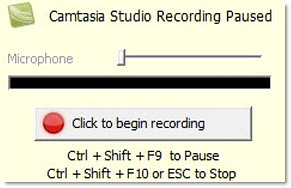
Step4: The presentation opens in presentation mode. A Camtasia Studio dialog opens in the lower right corner of the screen. Click the Click to begin recording button.
Step5: Progress through the PowerPoint presentation slides. To stop the recording before the last slide, press
Step6: Enter a file name and location and click Save. The presentation recording saves as a Camtasia Studio recording file.
Advantages with this method: The program can capture slide timing, animations, sound effects, webcam video and any applications displayed on screen during the presentation. You can also record your own narration while the screen-capture process is being carried out.
Disadvantages: This program eats huge system resources. If the configuration of your computer is not so good, animations may become laggy or even lost.
Method 3: Convert PowerPoint presentation to video with Acoolsoft PPT2Video Converter
Step1: Download this PPT to Video Converter (Wondershare PowerPoint to video converter you also can use)and install it on your computer.
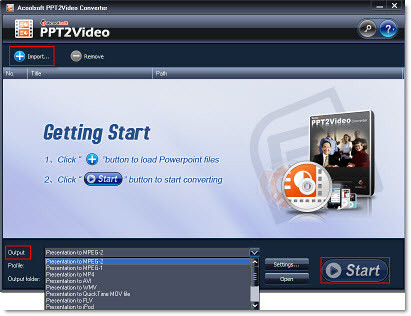
Step2: Launch the program. Click Import button to choose the presentation you want to convert, choose an output format for the video you want to generate. And then click Start button to start the conversion process. (This program can convert presentations to video in MPEG, AVI, MP4, WMV, 3GP, FLV and MOV.)
Step3: Upload the video to blogs or websites such as YouTube.
Method 4: Use Windows Movie Maker to create a video for your presentations
Windows Movie Maker comes with all Windows XP and Vista installed computers. With this method, it may time consuming and animations in your presentation would be lost after the conversion.
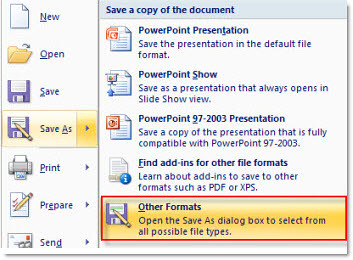
Step1: Save your PowerPoint slide show as “PNG” images.
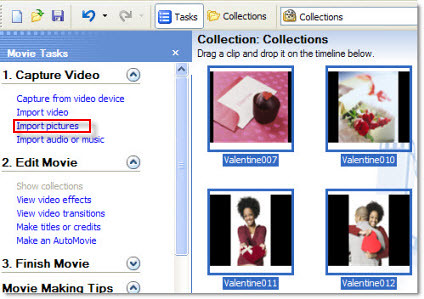
Step2: Import the images to your Windows Movie Maker.
Step3: Select all the imported images and then add them to Storyboard.
Step4: Add video effects to the slides (Optional)
Step5: Save the slide show as Movie File.
Method 5: Make a QuickTime movie on Mac
Export your presentation as a QuickTime movie “PowerPoint Movie”. Then you can save your presentations to MOV video file. Way to do this: click File -> Make Movie
But in this way, sounds and animations couldn’t be retained. If you are using keynote, just export your presentation to QuickTime file directly.
Take the advantages of PowerPoint and video. Convert your presentations to video. Share your presentation with more people and create a more convenient way to view your presentations.
Further reading:
PowerPoint to movie - Top 3 Methods about PowerPoint to Movie Conversion
PowerPoint to FLV - How to convert PowerPoint to FLV

Friday, February 6, 2009
Valentine Gift Ideas for Your Beloved
Valentine's Day is a holiday celebrated by many lovers all over the world, what you plan to do as the Valentine's Day approaches? Presenting flowers, exchanging confectionery, or sending Valentine's cards? This exceptional day of lovers allows everyone to give out the most fascinating things and speak up the never expressed things. Here are some perfect valentine gift ideas and tips that you can make your beloved happy.
There are plenty of options to choose. But before selecting any gifts for your beloved online, you need to put a lot of creativity, thinking and time. A gift for your beloved should largely depend on the personality of the individual. A Valentine Gift that suits the personality of your beloved will be considered as ideal.
1. Choose chocolates
If you want to make a great impression for your sweetheart on this Valentine, not to mention the feeling of cheerful surprise as your beloved receives this special valentine gift. You can choose heart-shaped chocolate, select a very romantic card and add some sweet message in it, then wrap it up to send to your beloved. This chocolate gift idea for your sweetheart promises to make her love you forever.
2. Choose candy
Surprise your Valentine with a gem of a candy collection or candy gift baskets. Candy gifts come in various types and categories suiting your sweetheart's mood and taste, not to mention affordability because candy would not be too expensive. With the aid of the various candy stores you can also order for various types of decorative candy boxes for your beloved. You can gift your spouse with a special candy bouquet.
3. Choose flowers
The meaning and beauty of flowers has captured our imagination so much that even words cannot match its power when it comes to expressing love. The perfect choice of a Valentine flower is the red roses, distinctly expressing love in its eternal form. The single stem of a rose also called “signature rose” is the most preferred choice of most Valentine lovers. Red, pink and white roses are the most sorts after Valentine Flowers. Red rose symbolizes passion, white purity and the pink rose is a blend of both.
For more flowers information you can browser Proflowers and Flowerpetal
4. Choose jewellery
Jewellery doesn't mean that it has to cost you a lot especially during the period of economic recession. My guess is she must be having many pairs of earrings and chains. So why not gift her something that she might just have one or even none. Select a nice anklet from a nearby jeweler and gift to her as a Valentine gift, you can select from different styles for her. So indulge yourself in this season of love with some great valentine jewellery ideas. Let your sweetheart remember you with this special moment lock inside her heart forever.
5. Record your romantic stories
Valentine's Day is a golden chance of expressing your love to your beloved. You can make up for all the time lost with great romance collage. Considering paper ones are easily damaged, you can create PowerPoint with snaps to cherish the memory of your love of joy. Under each Slide you can write a specific thing about your sweetheart, like "I miss your smile", "I miss you ". It will be a big fortune for you both. Presenting a sincere romance story in such a way could be an ideal Valentine's Day gift idea even if valentine flowers are not attached with it. For long-time preserve you can convert the PowerPoint to video or DVD instead papers. Here is a sample from YouTube http://www.youtube.com/watch?v=IbrOSNsNUWo . Want to know how to do it? You can click here. Here are also some free PowerPoint templates.
Below is a DVD Menu of the tool.
These are just part of my ideas, do you have any more? Please show it to your sweetheart this Valentine's Day.


Thursday, February 5, 2009
Free Valentine's Day PowerPoint Templates
Here are some free PowerPoint templates for Valentine's Day:

For more free ones, you can Click Here.


Tuesday, April 29, 2008
Acoolsoft PPT2DVD 2.0 Released - Burn PowerPoint to DVD

What's new in Acoolsoft PPT2DVD 2.0?
Acoolsoft PPT2DVD is the best tool to burn PowerPoint to DVD with excellent quality. It can retain all the animations, transitions, audio tracks, video clips, action buttons, internal links and other things you've added to the presentation, and generate DVD Menus to enable you to control the playback with a DVD remote. It is used by more and more teachers, sales people, presenters and even individuals who want to share or distribute their PowerPoint slide show more conveniently.The newly released Acoolsoft PPT2DVD 2.0 has been enhanced with flexible DVD Menus, additional PowerPoint to video functions, latest Blu-ray technology, and new encode engine for higher conversion speed. There improvements will make the PowerPoint to DVD conversion more efficient and more flexible.
Here are the main upgrades which are genuinely useful and keep the
Program standing on the top over the competitors:
1. Refreshing User Interface(Cool black and easy to understand)

2. Burn PowerPoint presentation to DVD disc with improved video quality
3. The conversion process is more stable and fast
With higher conversion speed, PPT2DVD 2.0 saves 50% time for you.

4. Reasonable DVD menu editor
You know one of the best ways to enjoy your video on channel with others is the DVD format, and an important part of making a DVD experience enjoyable is incorporated the useful and understandable menu.PPT2DVD 2.0 will guide you to where you want!

5. Create eye-popping menus with free backgrounds, frames and buttons
Have you ever wondered how to create stunning, professional-looking interactive DVD menus to make your PowerPoint presentation more attractive, just like the ones on the DVDs you buy?
The new version offers you an enhanced rang of menu materials including backgrounds, frames, buttons and text customizing, which will let you get creative when authoring your DVD PowerPoint presentation. Features include:
- Amazing picture backgrounds
- Flexible menu buttons
- Professional � Looking frames
- Customizing text
- Flexible frame-capturing function to apply any captured frame as the thumbnail image on the menu
6. Support 12 PowerPoint files batch process at a time
7. Accurately synchronization of sound and animation

8. Fully compatible with Windows Vista, PowerPoint 2007
9. It can retain the video full screen play and loop setting if set in original PowerPoint presentation
What is Acoolsoft PPT2DVD?
Acoolsoft PPT2DVD does only one thing: Burn PowerPoint presentation to DVD with the best solution! Acoolsoft PPT2DVD is a powerful presentation tool which helps you burn PowerPoint presentations to DVD without any complicated technical skills. The wizard of PPT2DVD can walk you through the steps to create DVD presentation out the PowerPoint and enjoy your Presentation on TV with only a DVD player.
Why you need to burn PowerPoint presentations on DVD?
- Showing presentations without the need of a computer
- Create your own Toast DVD menu style
- Distributing your slideshows to friends and colleagues on DVD Unattended
- exhibition presentations on big screen
- Giving your presentations a TV feel
- Creating professional looking presentations Ensuring that everyone can view your presentations (no matter whether they have PowerPoint installed on their computers)
- Protecting PowerPoint presentations from unauthorized editing
Click to learn more details about Acoolsoft PPT2DVD 2.0.
http://www.ppt-to-video.com/powerpoint-to-dvd-overview.html
Download PPT2DVD 2.0:
http://www.ppt-to-video.com/powerpoint-to-dvd-download.html
Here is a sample from YouTube